FREE WHILE IN BETA

iPhone only

Film it messy.
Post it clean.

Outtake cuts your stumbles, retakes and silences, so your take is ready to post.

  • Free while in beta
  • No watermark
  • iPhone with iOS 26
Your take 0:52

Hi, I’m Maya, and um, today I’m going to… sorry, let me start over. Today I’m sharing three things that uh, changed my mornings. 2.4 s pause First, I stopped checking my phone in bed.

Example take

SEE IT WORK

From first take
to finished video.

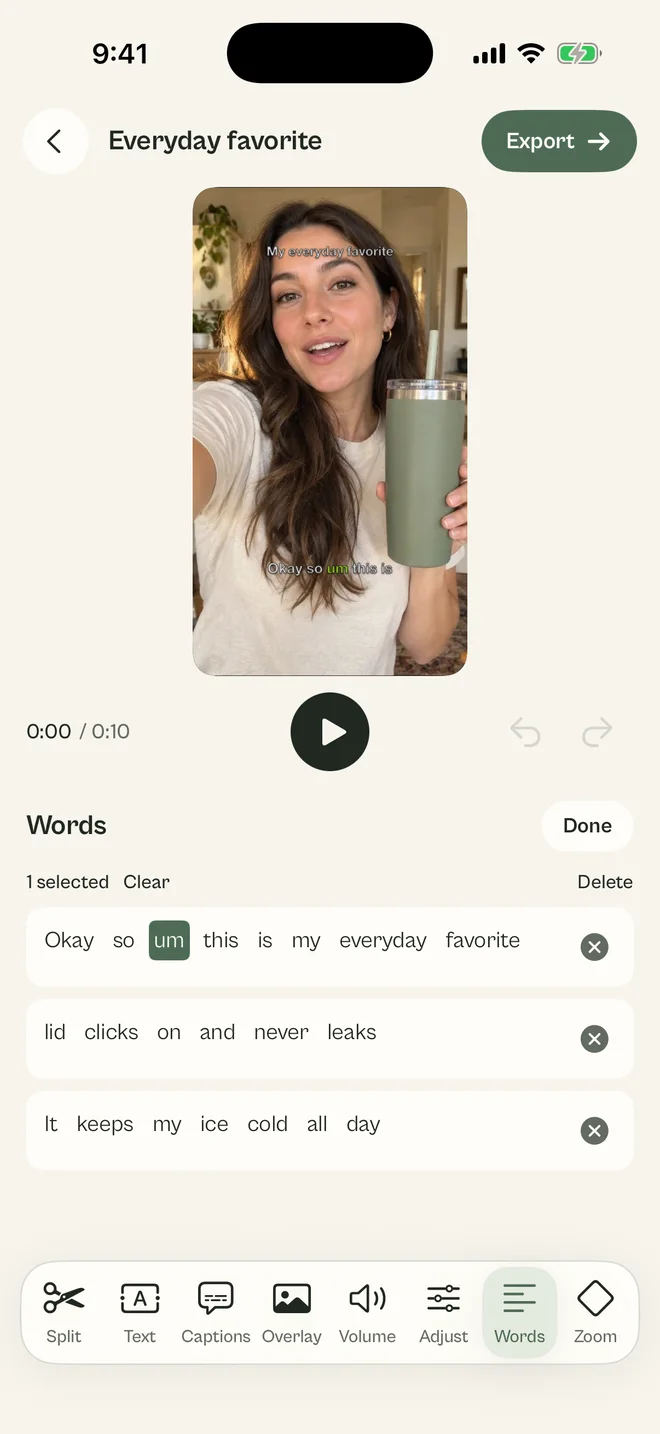
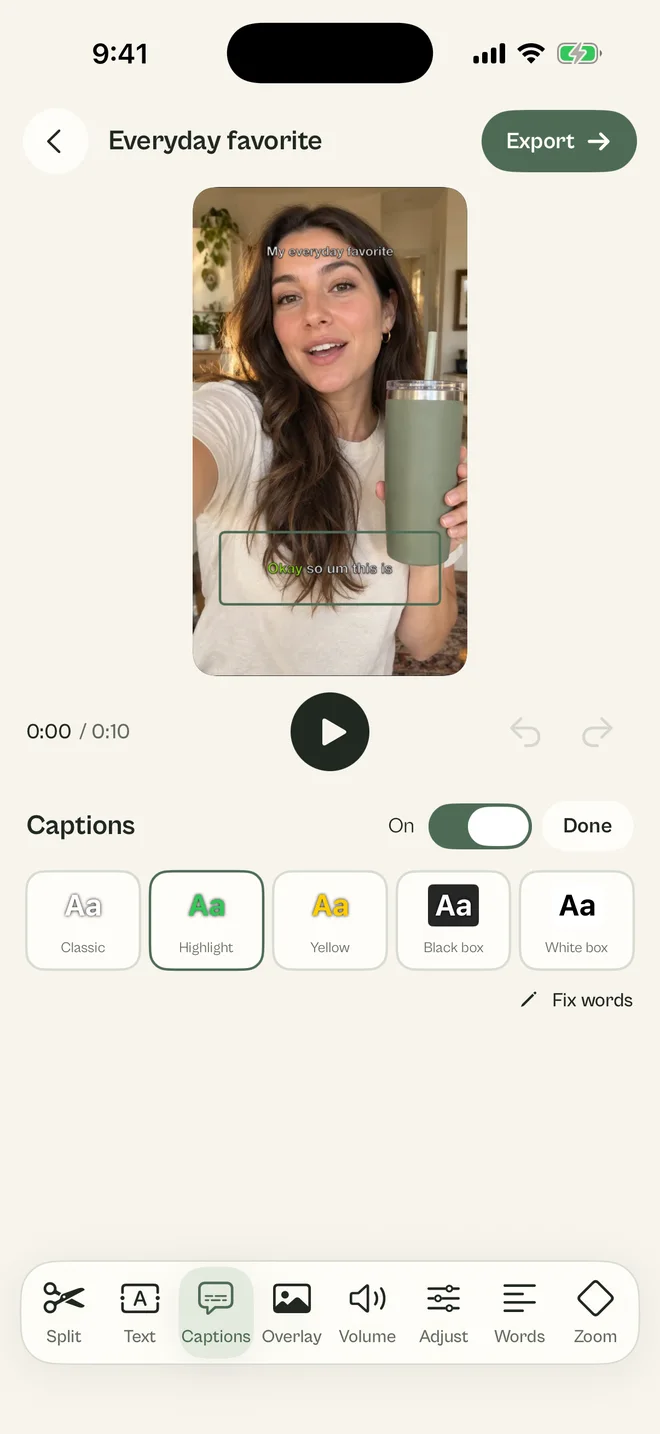
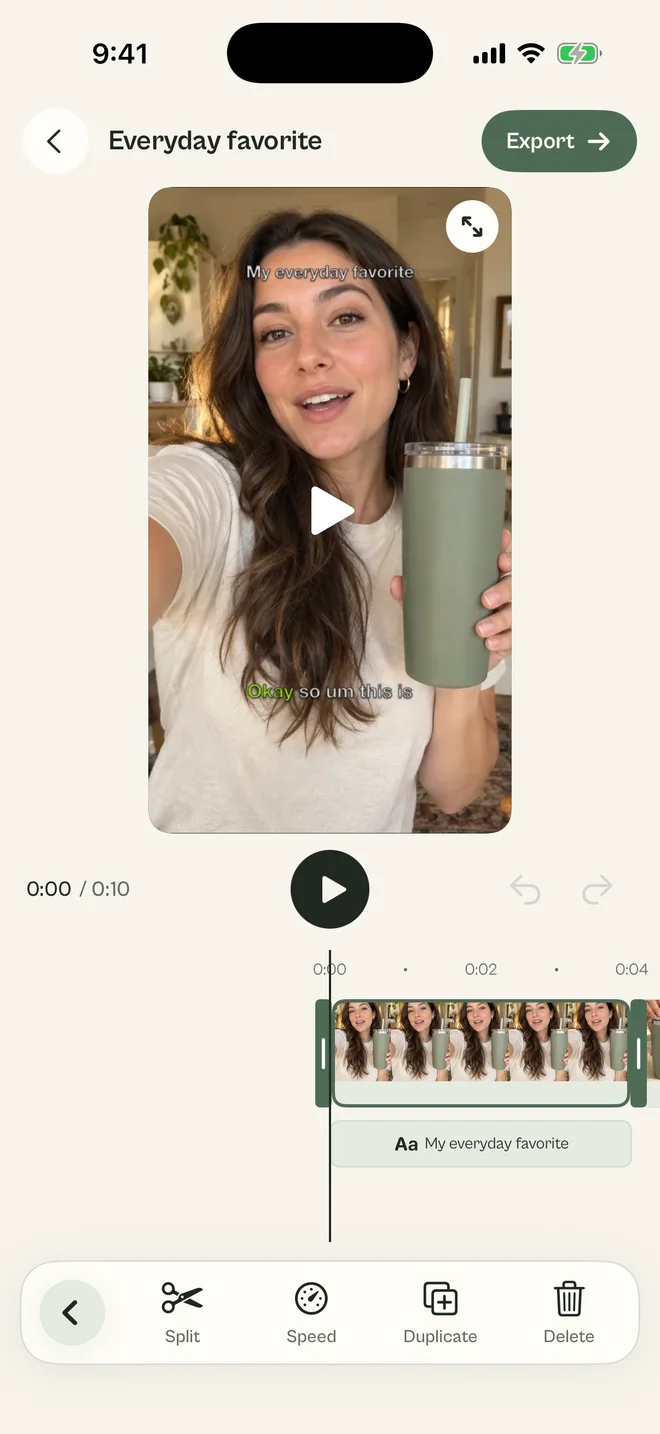
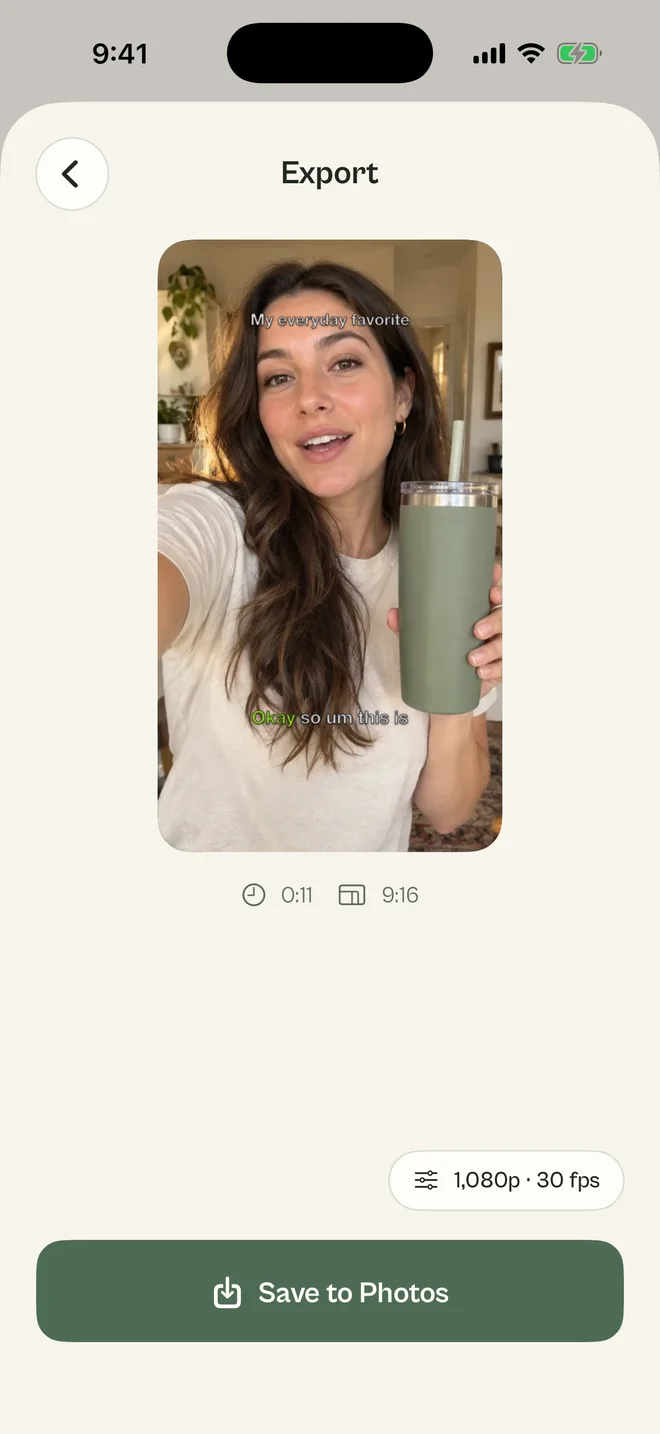
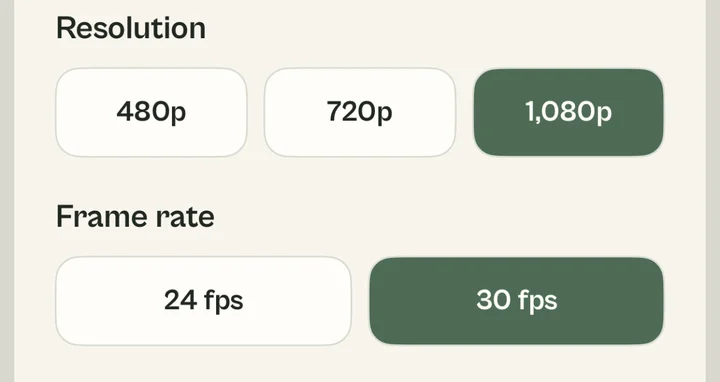
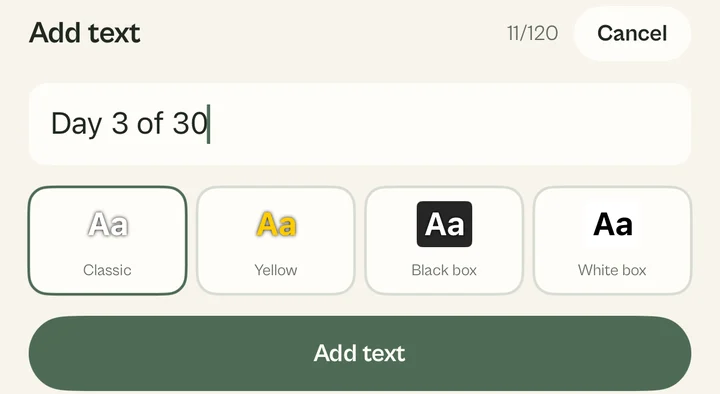
Outtake’s Words tool: the video as text, with the word “um” selected and a Delete button. Outtake’s Captions tool: captions on, with Classic, Highlight, Yellow, Black box and White box styles. Outtake’s timeline with a clip selected: trim handles, and Split, Speed, Duplicate and Delete. Outtake’s Export screen showing the finished video, 1080p at 30 frames a second, and Save to Photos.
  1. 01Record

    Your script, right on the camera.

    Paste or type what you want to say. It rolls over the viewfinder while you film, take after take.

    • Slow, Medium or Fast
    • Tap to pause, drag to move
    • Every take saved to Photos
  2. 02Cut

    Outtake makes the first cut.

    It reads what you said, keeps your best take of each line, and drops the stumbles and silences. Your video opens ready to play.

    • Stumbles, retakes and silences out
    • Your best take of each line kept
    • Up to 15 minutes of footage
  3. Outtake’s Words tool: the video as text, with the word “um” selected and a Delete button.

    03Fix

    Cut a word by tapping it.

    Your whole video as text. Tap what you don’t want, and it’s gone from the video too.

    • Delete a word or a whole line
    • Fix a word the captions got wrong
    • Undo anything
  4. Outtake’s Captions tool: captions on, with Classic, Highlight, Yellow, Black box and White box styles.

    04Captions

    Captions in one tap.

    Turn them on and they follow your words, one line at a time.

    • Five styles
    • The word you’re saying lights up
    • Fix any word
  5. Outtake’s timeline with a clip selected: trim handles, and Split, Speed, Duplicate and Delete.

    05Edit

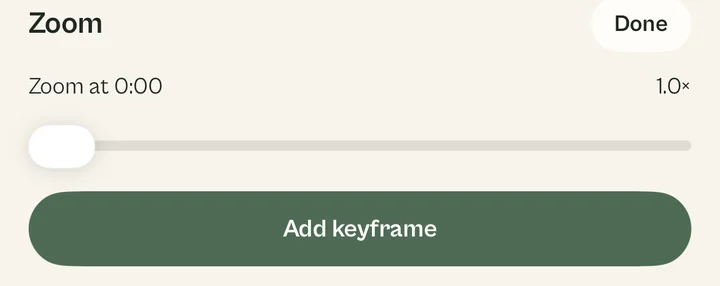
    A real timeline when you want one.

    Every cut opens in a full editor, so the last word is always yours.

    • Drag the handles to trim
    • Split, duplicate or delete a clip
    • Change a clip’s speed
  6. Outtake’s Export screen showing the finished video, 1080p at 30 frames a second, and Save to Photos.

    06Export

    Save it, then post it.

    Your video goes to Photos straight from your originals, ready for TikTok, Reels or Shorts.

    • 480p, 720p or 1080p
    • 30 frames a second
    • No watermark

Real app screens. The demo footage is AI-generated.

WHAT IT CUTS

It finds what you’d cut.
Then it cuts it.

Stumbles

Ums, uhs and false starts come out.

Retakes

Say it as many times as you need. It keeps your best take.

Silences

Long pauses close up, so your video keeps moving.

INSIDE THE APP
And everything else
a video needs.

Get the beta

Free while in beta · iPhone with iOS 26 or later

GETTING IN

Free while in beta.
Three taps to start.

  1. 1

    Get TestFlight

    Scan with your iPhone camera. It opens TestFlight (opens in a new tab), Apple’s free app for betas.

    Tap the button. It opens TestFlight (opens in a new tab), Apple’s free app for betas.

  2. The Outtake AI app icon

    Outtake AI

    Free · Beta

    Accept

    2

    Accept the invite

    Tap Accept, then Install.

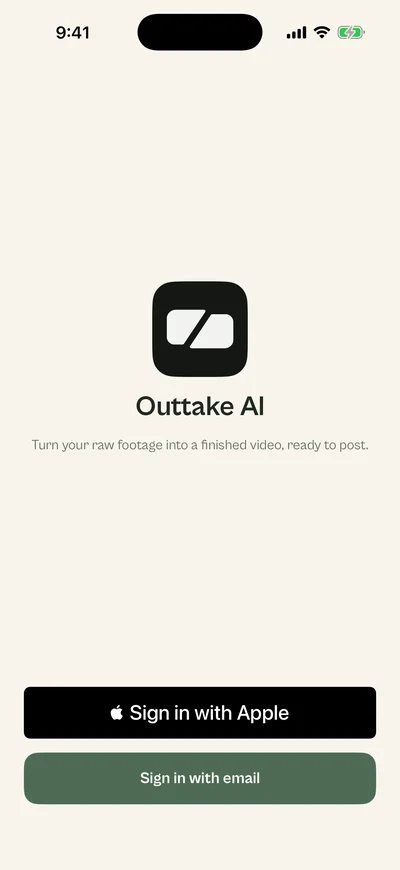
  3. Outtake’s first screen: the app icon, “Turn your raw footage into a finished video, ready to post.”, and Sign in with Apple.

    3

    Open Outtake

    Sign in, and make your first cut.

YOUR FOOTAGE

What happens to your footage.

Your originals stay on your phone

Outtake exports straight from them.

AI does the cutting

Your voice and short pieces of your clips go to AI services to make the cut.

Copies last 30 days

During the beta we keep a copy of your clips and saved videos for 30 days to see how the editor did, then delete them.

Delete anytime

Delete your account in Settings, and your clips, words and account go at once.

Read the privacy policy

FAQ

Questions.

Is it free?

Yes, while Outtake is in beta. You get 100 AI cuts a month.

Which iPhone do I need?

Any iPhone with iOS 26 or later.

What’s TestFlight?

Apple’s free app for trying apps before they reach the App Store. You install Outtake through it, and updates arrive there too.

How long can a video be?

Up to 15 minutes of footage in each cut.

What happens to my footage?

Your originals stay on your phone. Your voice and short pieces of your clips go to AI services to make the cut, and during the beta we keep copies for 30 days. More about your footage

Is there an Android version?

Not yet. Outtake is iPhone only for now.

Your next take,
cut for you.

Get the beta

Free while in beta · iPhone with iOS 26 or later

Get Outtake on your iPhone

Free while in beta. iPhone with iOS 26 or later.

Outtake is on iPhone for now. Send yourself the link for later.

QR code that opens the Outtake beta in TestFlight

Scan with your iPhone camera

It opens the Outtake beta in TestFlight.

On your iPhone? Open the invite
  1. 1Install TestFlight
  2. 2Tap Accept
  3. 3Open Outtake

WELCOME TO OUTTAKE AI

Your beta link is on its way.

Join our Discord to meet other creators, share ideas, and follow along as we build Outtake AI.

Join our Discord (opens in a new tab)